
Features
Integrations Pricing Developers Guides

Product images and your storage

Upload photos, see what is using space, and free some up.

Running your business 1 min read 4 steps 1 screenshots

Images are compressed for you on upload, so a phone photo does not cost you megabytes. Your plan sets a quota, and one page shows exactly what is using it.

1

Upload from the form editor

The Details tab holds the image grid. Select several at once — the first becomes the cover. If a batch would breach the six-image limit or your quota, the ones that fit are kept and you are told why it stopped.

2

Let us compress them

Every upload is re-encoded to a web-friendly format with a thumbnail, and photo metadata is stripped. A two-megabyte photo typically stores as a fraction of that.

3

See what is using space

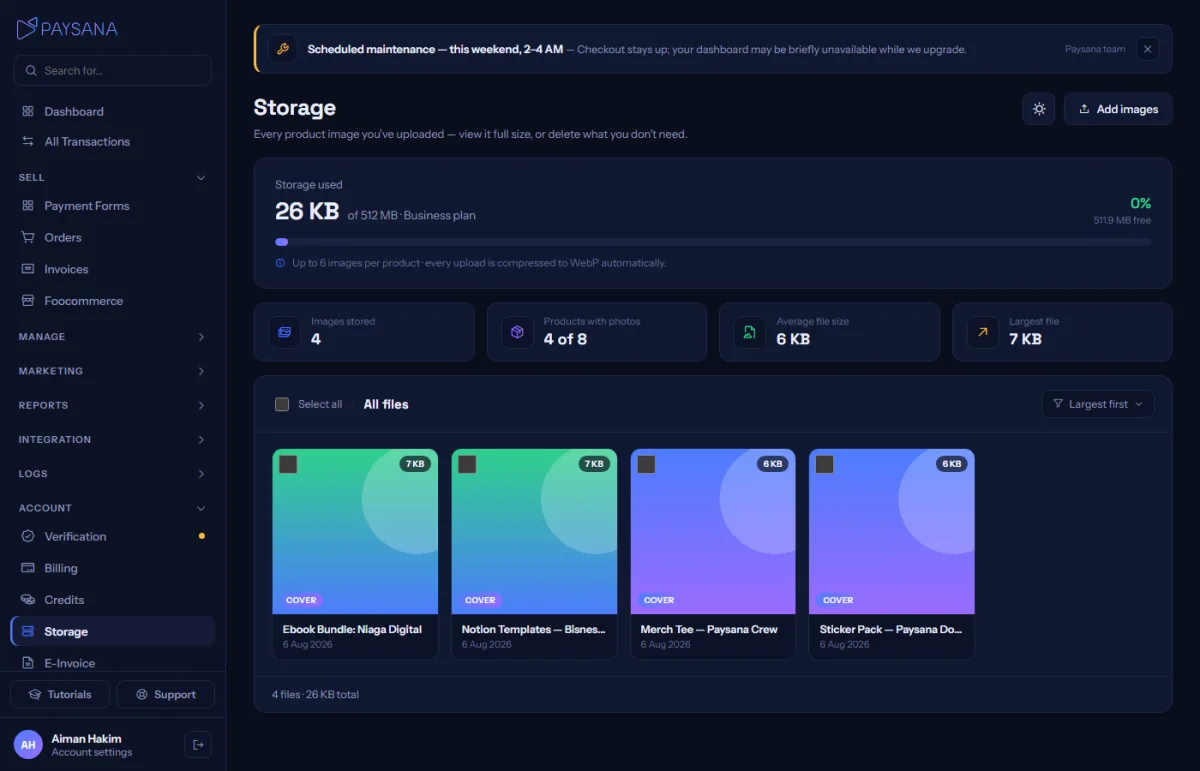
Storage under Account shows a usage bar and every image you hold, sorted largest first by default — because the job of that page is finding what to delete.
app.paysana.co
Storage. Sorted largest-first, with the size, product and date on every tile.
4

Free some up

Delete a single image from its tile, or tick several and use the bulk action — the bar tells you how many bytes you would free before you commit.

Worth knowing

  • The usage bar turns amber past 80% and red when full. Uploads are blocked at full rather than silently failing.
  • Your quota depends on your plan, and the cover image is what appears on shop cards, the product page and the checkout.

Read next

Still stuck? Send us a message and a person will answer — usually within one working day.
Contact us

Ready to try it?
Start free today.

Join the businesses already using Paysana to collect payments, send invoices and grow.

Free plan forever · No card to sign up · Your own gateway
We use cookies to measure how this site is used and how well our advertising works. They are optional — the site works exactly the same either way. Read our privacy policy.