
Features
Integrations Pricing Developers Guides

Sell event tickets and run the door

QR passes, attendee names, and checking people in from a phone.

Selling 1 min read 4 steps 2 screenshots

A Ticket / Event form sells seats and issues a scannable pass per paid order. On the day you work the door from any browser — no app, no printed list.

1

Set the event details

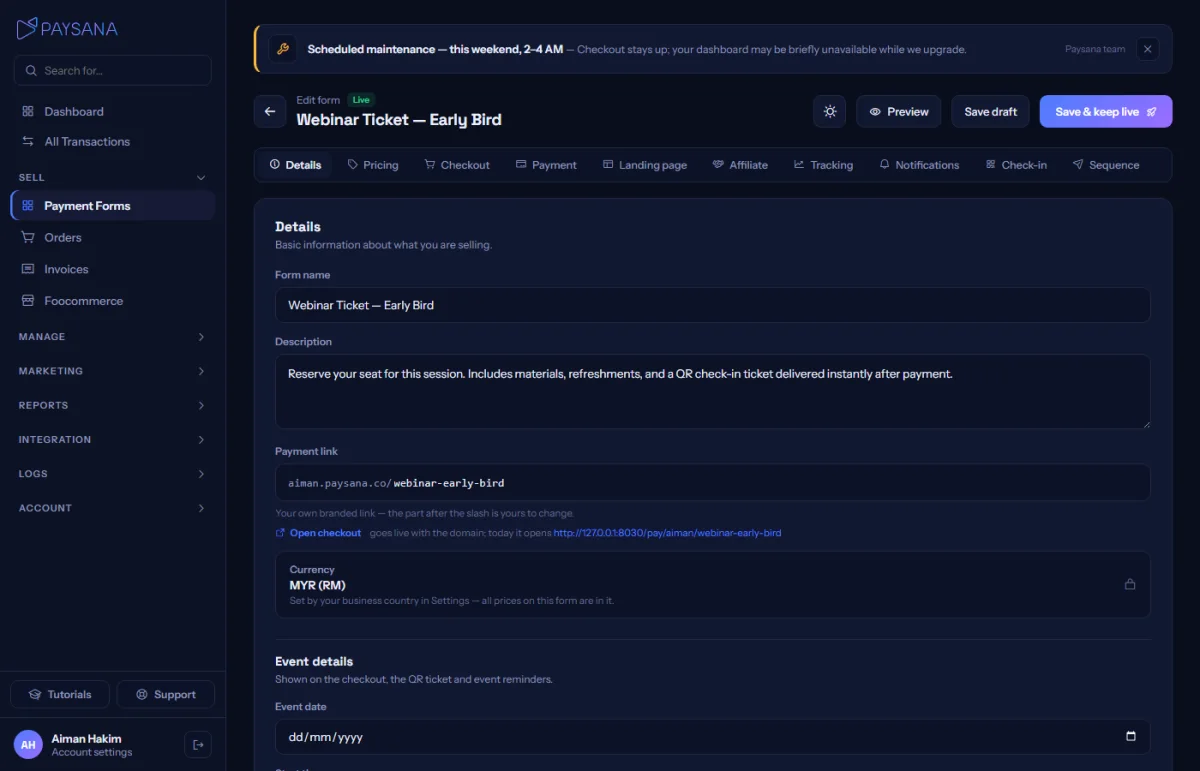
Date, time and venue are proper fields on the Details tab, not free text, so they show correctly on the checkout. Set the seat count as your stock and, if you want, show buyers how many are left.
app.paysana.co
Event details. Date, time and venue appear on the checkout automatically.
2

Collect attendee names

Switch on attendee collection and a buyer taking four seats is asked for the other three names at checkout. They are stored on the order and shown when you open it.

3

Buyers get their pass

Every paid ticket order gets a QR pass at its own address, linked from the receipt page and the receipt email. Nothing needs printing or posting.

4

Check people in

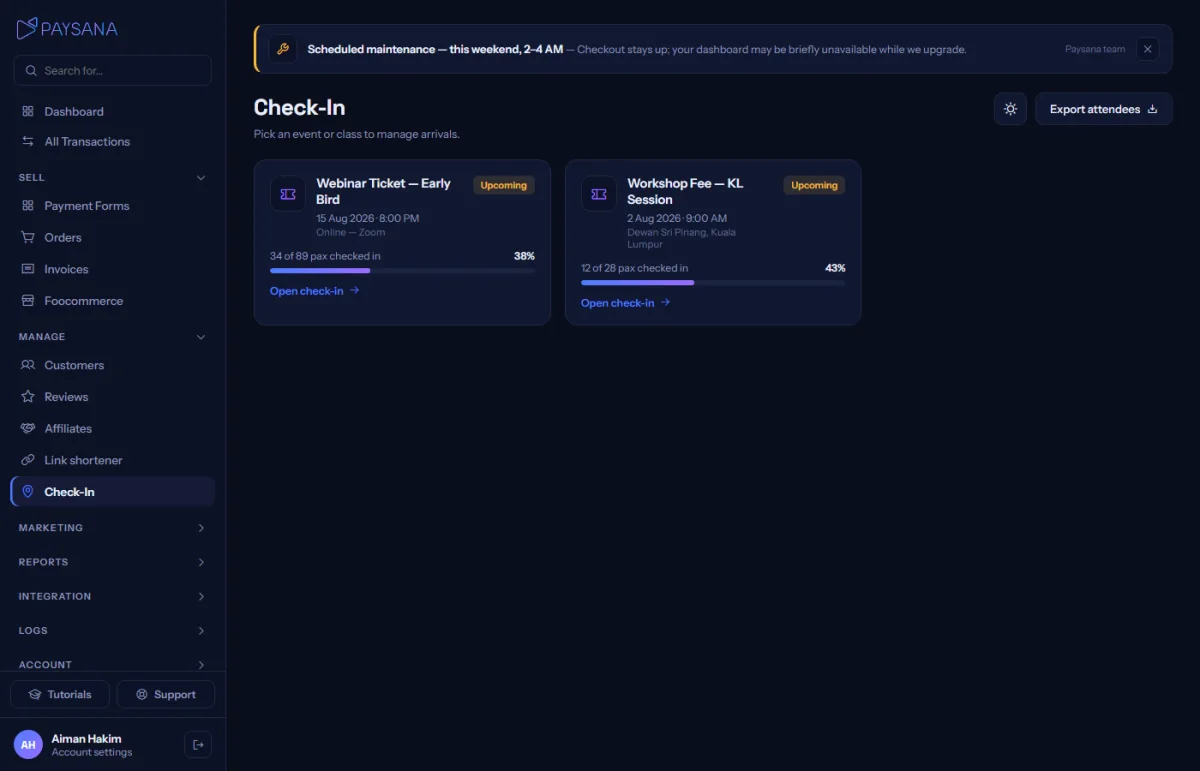
Open the Check-in page on the day. Scan a code, paste one, or tick someone off by hand if they arrive without their phone. The arrival count updates as you go.
app.paysana.co
The check-in page. Scan, paste a code, or mark an arrival manually.

Worth knowing

  • Decide up front whether a pass can be scanned once or several times — that is a setting, not a default.
  • The attendee list exports to CSV, which is handy for whoever is working the door.

Read next

Still stuck? Send us a message and a person will answer — usually within one working day.
Contact us

Ready to try it?
Start free today.

Join the businesses already using Paysana to collect payments, send invoices and grow.

Free plan forever · No card to sign up · Your own gateway
We use cookies to measure how this site is used and how well our advertising works. They are optional — the site works exactly the same either way. Read our privacy policy.